 how-to
Why AI Art Needs Print-Ready Conversion
Last Updated: October 22, 2026
Quick Summary
AI art print ready requires converting images from 72 DPI to 300 DPI minimum, shifting color mode from RGB to CMYK, and exporting as PDF or TIFF with embedded color profiles before production. Without these technical adjustments, AI artwork prints blurry, with color shifts and wasted inventory.
- AI images typically output at 72 DPI for screens but require 300 DPI minimum for print at final size
- RGB color mode must convert to CMYK because the two systems have different color gamuts and reds, blues, and greens shift during conversion
- PDF is the best file format for print because it preserves quality, embeds fonts, and handles color profiles universally
- Bleed of 0.125 inches on all sides and crop marks are required to prevent white borders and cutting errors
- A preflight checklist covering resolution, color mode, file format, dimensions, bleed, crop marks, text, compression, color profile, and file size prevents the most common print failures
Table of Contents
- Why AI-Generated Artwork Fails in Print Without Conversion
- AI Image Resolution for Printing: The 300 DPI Standard
- Upscale AI Images for Print Without Losing Quality
- Color Conversion: From RGB to CMYK for Print
- AI Art File Formats for Printing: Choosing the Right Format
- Bleed and Crop Marks for Printing: Essential Setup Steps
- Your Print-Ready Preflight Checklist for AI Artwork
- Conclusion
- Frequently Asked Questions
Why AI-Generated Artwork Fails in Print Without Conversion
AI-generated images look sharp on screens but fall apart in print without proper conversion, making AI art print ready essential before production. The problem isn't the AI, it's skipping a critical step: converting AI art to print-ready format. Send an AI image straight to a printer and you get blurry output, color shifts, and wasted inventory.
AI-generated artwork requires specific technical adjustments before it can be printed successfully. Research from Stanford Graduate School of Business found that AI-generated images significantly changed market dynamics, but this shift highlighted a major gap: most creators don't know how to prepare these files for production. A single print run of branded apparel with poor image quality can damage your company's credibility with customers and employees alike.
This guide walks through resolution requirements, color conversion, file formats, and the preflight checklist that prevents disasters.
AI Image Resolution for Printing: The 300 DPI Standard
Resolution is where most AI images fail. AI artwork typically comes out at 72 DPI, perfect for screens, useless for print, which requires 300 DPI at final size.
The conversion process is simple:
- Check your AI image's current resolution (usually 72 DPI)
- Calculate the final print size you need
- Determine if upscaling is required (covered in the next section)
CardSource's print-ready artwork guide advises that artwork should be at least 300 DPI when shown at 100% and no higher than 450 DPI. Going above 450 DPI doesn't improve quality, it just creates unnecessarily large files that slow down production.
Upscale AI Images for Print Without Losing Quality
If your design is too small for the final print size, you'll need to upscale it carefully.
Here's the practical reality:
- Upscale by no more than 200% if possible
- Use AI upscaling tools that add detail intelligently
- For dramatic size increases, consider regenerating the image at a larger size in your AI tool
Use specialized upscaling software, not generic enlargement tools. The right algorithm analyzes the existing image and adds pixels matching the surrounding detail.
Logoclothz Design Guide on print-ready images notes that AI-generated images are typically low-resolution raster images that lack color accuracy and scale.
Color Conversion: From RGB to CMYK for Print
Your AI image is in RGB color mode; print uses CMYK. RGB uses light for screens; CMYK uses ink. The two systems don't map perfectly, a bright RGB blue may shift to a darker, duller blue.
The conversion process:
- Open your AI image in design software (Photoshop, GIMP, Affinity Designer)
- Go to Image > Mode > CMYK
- Choose a print profile that matches your printer's specifications
- Review the color shift and adjust if needed
- Export as PDF or TIFF in CMYK mode
The shift can be dramatic: neon RGB colors go muted, reds shift toward orange, purples toward blue. That's why proofing matters.
What Actually Shifts, and Why
CMYK has a smaller color gamut than RGB. The most common casualties in AI artwork are saturated blues, electric greens, and neon pinks, the exact colors AI generators overproduce. A vivid RGB blue around #0000FF typically lands as a darker, slightly purple navy; saturated greens lose their glow; deep purples drift toward blue. Judge the CMYK file through a soft proof, not in RGB view.
Embedded Profiles: The Step Most People Skip
A color profile tells the printer how to interpret the numbers in your file. Without one, the printer guesses. Before exporting, confirm:
- Your document has a CMYK working profile assigned (for example, a standard U.S. coated or uncoated press profile, depending on the stock).
- The profile is embedded in the exported PDF or TIFF, not just set in the application.
- You have not accidentally converted twice (RGB to CMYK, then CMYK to a different CMYK profile), which compounds color loss.
Convert once, embed the profile, and leave it alone, repeated conversions quietly cause muddy output.
Soft Proofing Before You Commit
Soft proofing simulates on screen how CMYK ink will render. In Photoshop, use View > Proof Setup with your printer's recommended CMYK profile, then toggle View > Proof Colors. In Affinity Designer and Photo, the soft-proof adjustment layer does the same job; in GIMP, enable color management and set the proofing profile under View > Color Management. It catches the worst gamut failures before you pay for a press run, look at saturated brand colors, gradients, and where two bright colors meet.
When to Request a Physical Proof
Some jobs justify a physical proof: brand-color-critical work, large-format pieces, and projects using specialty stock or ink. Ask your printer about contract or press proofs, and confirm the proof stock, the wrong paper can mislead you. For lower-stakes jobs, a calibrated soft proof plus a small test print usually suffices.
Tool-Specific Settings to Check
- Photoshop: Edit > Convert to Profile (not just Image > Mode > CMYK) so you control the destination profile. Then File > Export > Adobe PDF with the PDF/X-4 preset and Output set to your CMYK profile.
- Affinity Designer/Photo: Document Setup > Color Format set to CMYK/8, then File > Export > PDF with the PDF/X-4 preset and the correct profile embedded.
- GIMP: Image > Color Management > Convert to Color Profile, then export with the profile saved.
AI Art File Formats for Printing: Choosing the Right Format
Your AI tool probably exports PNG or JPEG, neither is ideal for print. Here's what works:
PDF, Best for most print jobs. Preserves quality, embeds fonts, and handles color profiles. This is what most printers want.
TIFF, Uncompressed, lossless format. Takes up more space but guarantees no quality loss. Good for high-end printing.
EPS, Encapsulated PostScript. Works well for professional printing but is becoming less common.
JPEG, Compressed format. Acceptable but not ideal. Loses some quality with each save.
PNG, Good for web, not for print. The transparency features don't translate to ink on paper.
For AI artwork specifically, convert to PDF whenever possible to ensure your AI art print ready files handle color profile conversion and maintain resolution. PDF handles color profile conversion, maintains resolution, and is universally compatible with print production software. When exporting to PDF, make sure these settings are correct:
- Color mode: CMYK
- Resolution: 300 DPI minimum
- Compression: Minimal (preserve quality)
Bleed and Crop Marks for Printing: Essential Setup Steps
Bleed and crop marks prevent your design from being cut off or showing white borders.
Bleed is extra space beyond your final design size.
Crop marks are small lines outside the bleed area that tell the printer exactly where to cut.
Setting up bleed and crop marks:
- Create your design at final size plus bleed (add 0.25 inches to width and height)
- Place important design elements at least 0.25 inches from the edge (safe area)
- Extend background colors or images to the bleed edge
- Add crop marks in your design software (usually under Print or Export settings)
- Verify in a print preview before sending to production
Many AI tools don't build in bleed by default, add it manually in design software. Skip it, and your design gets cut into or loses color at the edges.
Your Print-Ready Preflight Checklist for AI Artwork
Before you send your AI artwork to print, run through this checklist. Each item prevents a specific problem.
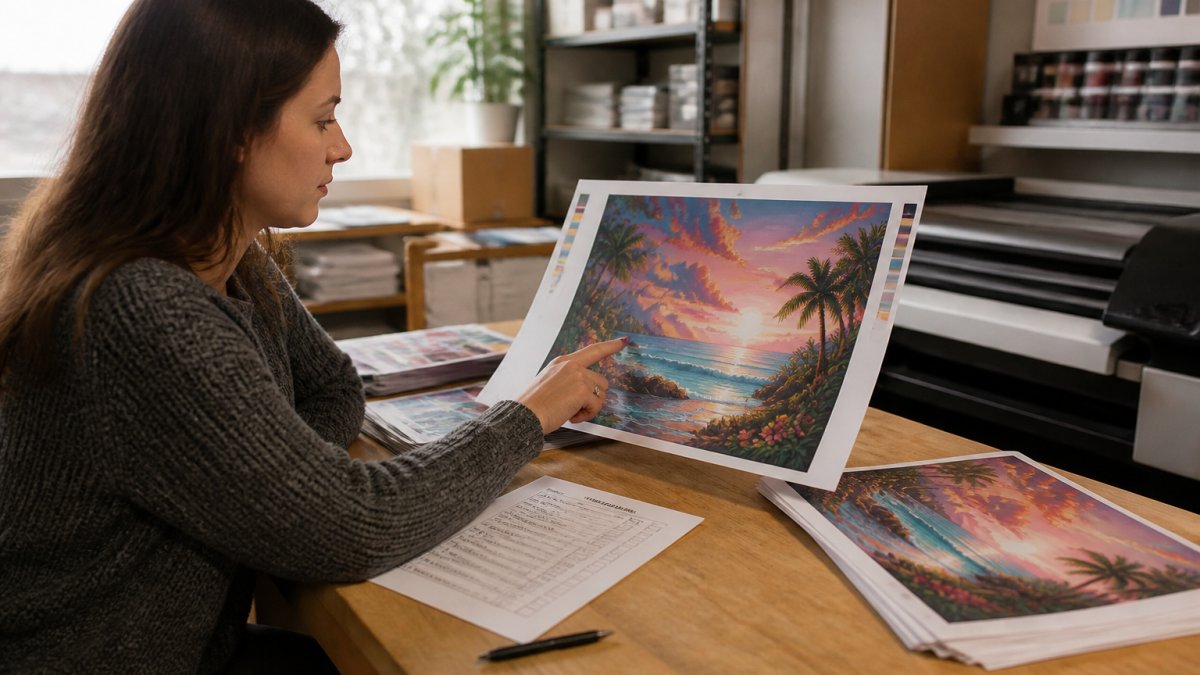
| Checklist Item | What to Check | Why It Matters |
|---|---|---|
| Resolution | 300 DPI minimum at final print size | Prevents blurry, pixelated output |
| Color Mode | CMYK (not RGB) | Ensures colors print as expected |
| File Format | PDF or TIFF | Compatible with all print equipment |
| Dimensions | Correct size + bleed | Prevents cutting errors or white borders |
| Bleed | 0.125 inches on all sides | Color extends to edge after cutting |
| Crop Marks | Visible in print preview | Guides cutting equipment precisely |
| Text | Converted to outlines or embedded fonts | Text doesn't disappear or change |
| Image Compression | Minimal or none | Maintains quality through production |
| Color Profile | Embedded in file | Printer knows how to interpret colors |
| File Size | Under 100 MB | Uploads and processes quickly |
Run through each item before exporting. A 2-minute checklist saves hours of reprinting and thousands in wasted inventory. The most common failures:
- Resolution too low (72 DPI instead of 300 DPI)
- RGB color mode instead of CMYK
- No bleed added
Each is fixable, but only before printing. Once the press runs, it's too late.
The Same Checklist Doesn't Fit Every Product
The generic table is a starting point, but requirements change by product, a poster and a sticker don't fail the same way.
Posters and large-format prints. Resolution is the dominant risk.
Apparel (t-shirts, hoodies). Sizing is about placement, not the full canvas.
Books and multi-page documents. Page count, spine width, and gutter margins enter the checklist.
Packaging. Structural dielines drive everything.
A Final Pre-Upload Walkthrough
Before you hit upload, do this in order:
- Open the file at 100% zoom and inspect edges, text, and fine detail for artifacts.
- Confirm the document size matches the product spec, including bleed.
- Verify the color mode is CMYK and the correct profile is embedded.
- Check that all text is outlined or fonts are embedded.
- Confirm the export preset (PDF/X-4 is a safe default for most print workflows).
- Review the printer's own preflight report if they provide one, and fix flagged items before resubmitting.
Conclusion
AI-generated artwork is powerful and fast, but it requires conversion before it's print-ready. The process isn't complicated, just specific: resolution, color mode, file format, bleed, and crop marks are non-negotiable.
If your AI artwork is ready to print but you're not sure about the technical details, we can help. Contact us today, and let our team handle the conversion, quality checks, and production so your designs come out exactly as intended.
Frequently Asked Questions
Why does AI-generated art need to be prepared before printing?
AI-generated artwork typically lacks the technical specifications required for professional printing. Most AI tools output low-resolution raster images (often 72 DPI) designed for screens, not print. Print production demands at least 300 DPI at final size, accurate color profiles (CMYK instead of RGB), proper bleed and crop marks, and correct file formats. Without conversion, your printed materials will appear blurry, pixelated, or show color shifts. Converting AI art ensures sharp output, accurate colors, and professional results on apparel, business cards, promotional items, and signage.
What resolution should AI art be for printing?
AI art for printing must be at least 300 DPI (dots per inch) at its final printed size. For example, if your design prints at 4 inches by 6 inches, the file must be 1,200 by 1,800 pixels at 300 DPI. Most AI image generators create files at 72 DPI or lower, designed for web display. You'll need to upscale the image using specialized software or professional upscaling tools to reach 300 DPI without introducing blur or pixelation. Anything below 300 DPI will result in visible quality loss on printed materials.
How do you fix blurry or pixelated AI art before printing?
Blurriness and pixelation in AI art typically stem from low resolution. Start by upscaling the image using AI upscaling software designed for print (which preserves detail better than simple enlargement). Adjust the image size to match your final print dimensions at 300 DPI. Next, apply sharpening filters carefully to enhance clarity without creating artifacts. If text or fine details are distorted, you may need to recreate those elements manually or use vector-based alternatives. Always proof the upscaled image at 100% zoom before sending to print. Professional print shops can often assist with cleanup and optimization.
What file format is best for printing AI art?
PDF is the preferred format for most print applications because it preserves quality, color profiles, and layout across different systems. For photographic or detailed AI artwork, TIFF (Tagged Image File Format) is excellent for print production and maintains high quality without compression. JPEG can work for photographs but uses lossy compression, which may degrade quality. Avoid PNG for final print files unless transparency is essential (and even then, confirm with your print provider). Always embed color profiles and ensure the file is in CMYK mode before submitting. Ask your print vendor for their specific file format requirements, as some prefer PDF, others TIFF, depending on their equipment.